Setup guide
Two ways in, depending on what you play. Pick yours; the OBS step at the end is the same for both.
CheckMate Gaming / Console Kings
Get your CheckMate Gaming links
Go to your profile page on checkmategaming.com while signed in. The address bar shows your CMG Profile URL — copy it.
Then click the SCHEDULED tab near the bottom of your profile (shown below). The URL updates to end in
#scheduled-matches— copy that too. That's your CMG Scheduled Matches URL.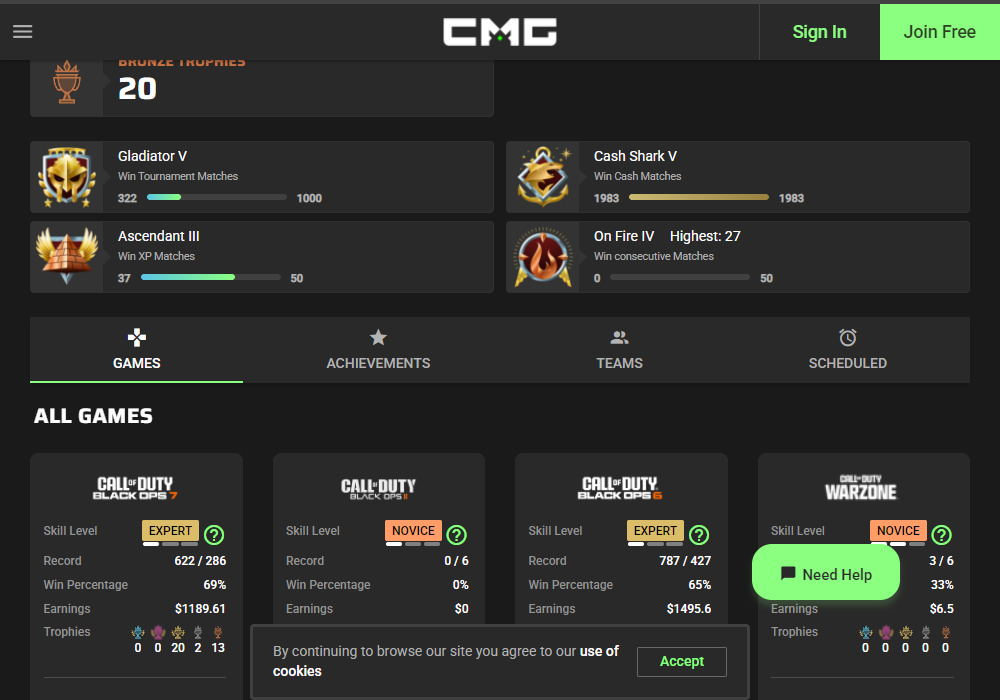
The SCHEDULED tab, next to Games / Achievements / Teams.
Get your Console Kings links
Same idea on consolekings.com. Your profile page's URL is your CK Profile URL.
Click the SCHEDULED MATCHES tab (shown below) — the URL updates with
?tab=scheduled-matchesat the end. That's your CK Scheduled Matches URL.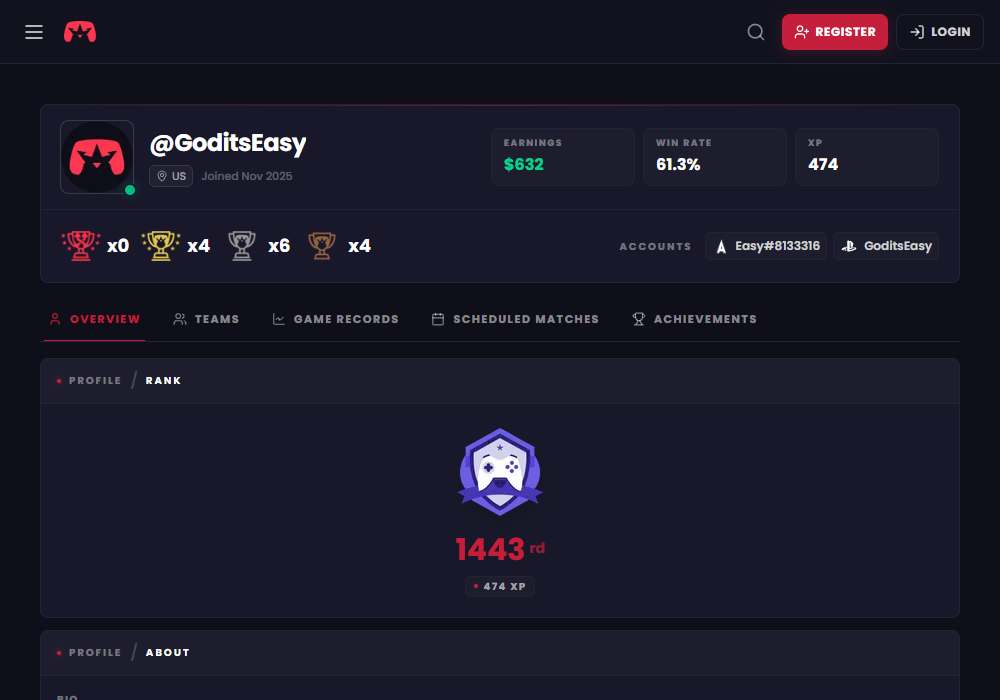
The SCHEDULED MATCHES tab, next to Overview / Teams / Game Records.
Paste them into Connections
Open Connections and paste the links under Game accounts — profile URL and scheduled matches URL, for whichever site(s) you play on. One site's pair is enough to unlock your overlay; add both if you play on both.
Click Save. Your overlay URL and live preview appear on the dashboard once at least one pair is saved.
Add it to OBS
- In OBS, click the + under Sources and choose Browser.
- Paste your overlay URL from the dashboard into the URL field.
- Set Width to
1920and Height to the number your dashboard shows next to the URL (96at the default size). The bar is designed against a 1920-wide source even if your canvas is a different resolution. - Click OK, then resize and position the source on your scene.
If you also want the match maps bar (shows the map rotation during a Bo1/Bo3/Bo5), add a second Browser Source the same way, using the second overlay URL from your dashboard.
Ranked Play
Type your SR
You don't need a CMG or Console Kings profile. Open Ranked Play, pick Warzone (Resurgence or Battle Royale) and/or Multiplayer, type your current SR and click Save. The division emblem, SR, SR today and the climb to the next division come from that one number.
Ranked has its own OBS Browser Source — the Player Card for under your face cam, or a full-width bar — and its URL and size are on that page. Your ranked tier can also join the main bar (the "Also on the main bar" switch).
Update your SR between games; it isn't pulled from the game (Activision doesn't expose it outside the Top 250). Tap + after each match for today's W/L. Every overlay you have running follows within a minute. More on the ranked overlay page.
If something looks off
Restarting the Browser Source
If your stats look frozen, or you just changed a setting in your StatBlitz dashboard and it isn't showing up on stream, refresh the Browser Source instead of removing and re-adding it:
- In OBS, right-click the Browser Source in your Sources list.
- Click Refresh — this reloads it in place, the same as reloading a browser tab.
You can also toggle the source's visibility off and back on (the eye icon next to it in the Sources list) — that restarts it too, as long as "Shutdown source when not visible" is checked under its Properties.
Text looks blurry?
That's almost always OBS stretching the source, not the overlay itself. OBS draws the Browser Source at the Width and Height set in its Properties, then scales that image to however you've dragged it in your scene — and scaled text goes soft.
- Right-click the Browser Source → Transform → Reset Transform. This removes any stretching.
- Open its Properties and set Width and Height to the exact size you want it on screen. The overlay scales its own text to whatever width you give it, so there's never a reason to drag-resize it in the scene — want it smaller, make the source itself smaller.
If it's sharp in your OBS canvas but soft on the actual stream, check Settings → Video — an Output resolution lower than your Canvas resolution downscales everything on stream. That one's a normal streaming tradeoff, not an overlay issue.
Stuck, or your stats aren't showing up? Email support@statblitz.gg.